 |
 |
|
 |
|
|
|
Pasting items into text flows is very useful, but InDesign tackles this job in a different way than QuarkXPress. Setting an inline graphic as a drop cap is a favourite trick, so here's how to achieve it in InDesign. |
||
|
|
|
 |
||
|
|
|
|
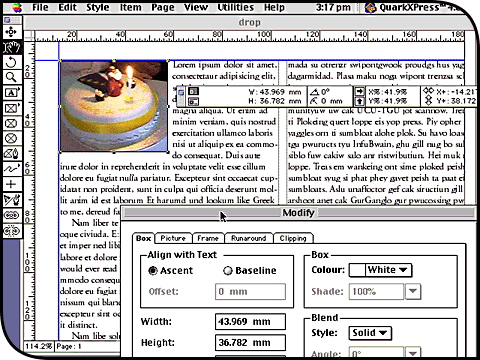
Both XPress and InDesign let you paste picture frames into text frames as inline graphics which then flow with the text. This can be useful for attaching visual devices at the beginning of an article. Here in XPress, the inline graphic has been given runaround values and made to align with the text Ascent to produce this sunken drop-cap effect. |
||
|
|
|
 |
||
|
|
|
|
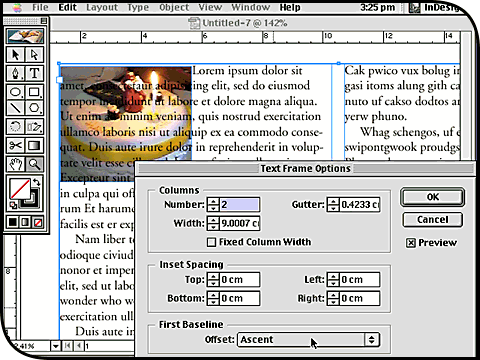
Try to do the same thing in InDesign, and you’re stuck. Setting the First Baseline Offset to Ascent in the Text Frame Options dialog (Object menu) doesn’t actually sink the inline graphic into the paragraph. You can drag the object downwards with the Selection tool, but the text then overlaps the image. Text wrap cannot be set for inline graphics. |
||
|
|
|
 |
||
|
|
|
|
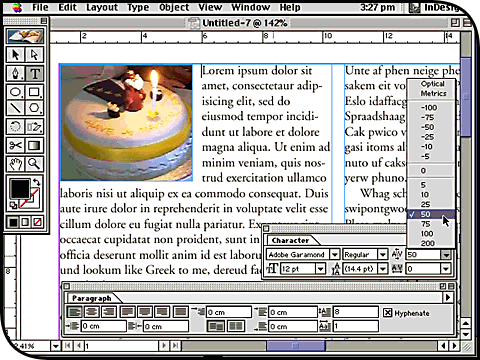
Instead, with the Type tool, insert the cursor between the inline graphic and the first letter of the paragraph. At the bottom right-hand field of the Paragraph palette, enter ‘1’ as the Drop Cap Number Of Characters and type a number of lines to drop in the field above. In the Character palette, change the kern value to widen the runaround. |
||
|
|
|