 |
 |
|
 |
|
|
|
Any text on a Bézier curve or straight vector path in an XPress page will be converted to an ordinary text frame when opened with InDesign. Quite simply, InDesign does not let you run text on a path. Adobe suggests that you create such text effects in Illustrator and then drag them onto your InDesign page. But if you’re trying to preserve existing documents from XPress, you ‘ll need a more precise method of replacing what was lost. |
||
|
|
|
 |
||
|
|
|
|
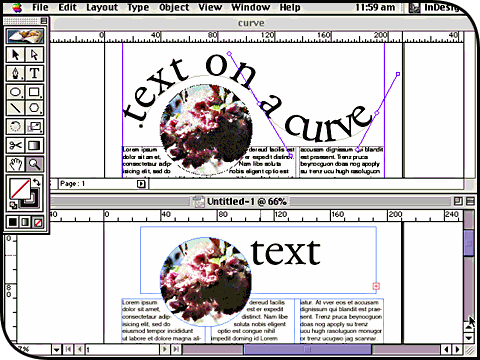
The top window shows the original XPress document while the bottom window shows what happens when it’s opened with InDesign. The text has survived, but only in an ordinary text frame. You can replace it with text on a curve from Illustrator, but there’s no obvious way of ensuring that the curve and type attributes will be the same as the original. |
||
|
|
|
 |
||
|
|
|
|
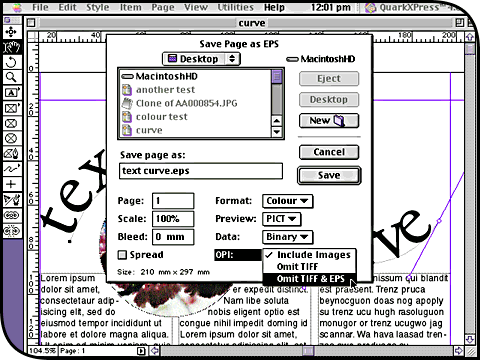
So go back to XPress and re-open your original document. From the File menu, select Save Page As EPS. Give the EPS file a new name just to be safe, then enter the page number which contains the text on a path. From the OPI pop-up menu, select Omit TIF & EPS. All you want is the text. Click Save. |
||
|
|
|
 |
||
|
|
|
|
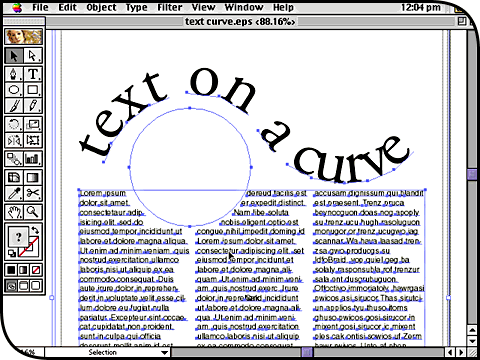
Open up your new EPS file from within Illustrator; it should look something like this, with the text showing and the images missing. First ungroup everything by pressing command-shift-g, then use the Direct Selection tool to delete the unwanted items from the page. Only leave behind the text on a path (even though the Bézier path has gone). |
||
|
|
|
 |
||
|
|
|
|
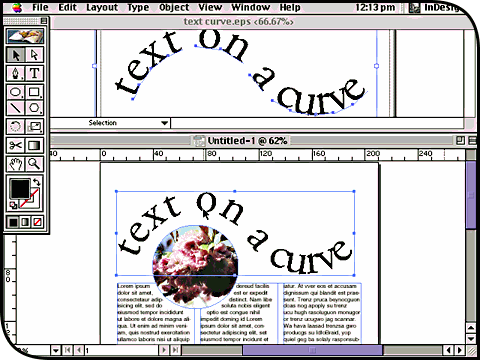
Run InDesign and open up the problematic XPress document again. Select the wrongly formatted text and delete it. With your Illustrator window still showing, drag the text on a path and drop it directly onto the InDesign page. You can move it into position easily using the Selection tool, and it appears exactly as it did in XPress. |
||
|
|
|
 |
||
|
|
|
|
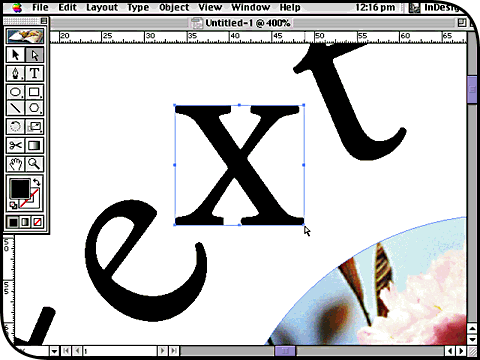
Although pushing the document through Illustrator has caused the Bézier path to vanish, leaving individually positioned characters, this has its benefits too. You can now select and edit each character individually as a graphic object. They can be resized, moved, rotated and sheared one by one something you can’t do so easily in XPress. |
||
|
|
|